
A walkthrough
How Torahlab works
Every screen you'll meet, in the order you'll meet it. No experience needed — plenty of people here are starting from scratch.
First
Signing up
Three steps, about a minute. No experience needed, and nothing here asks how much you know.
- 1
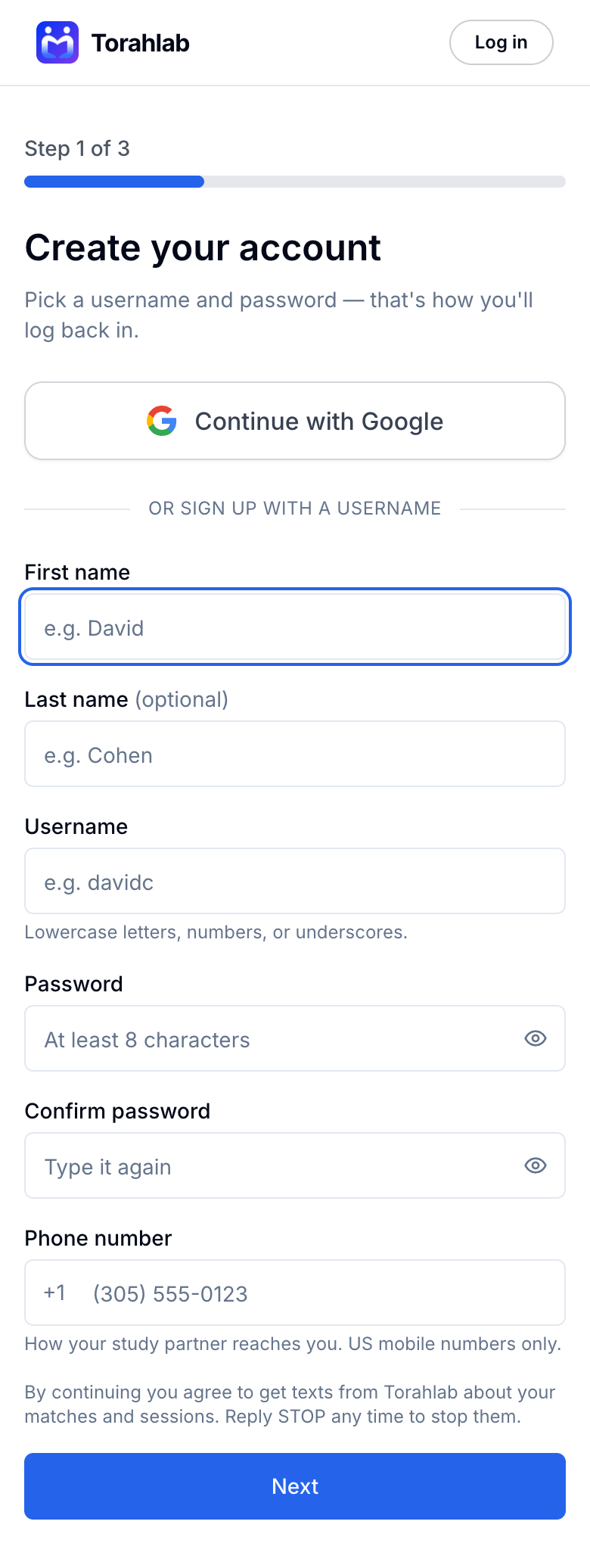
Create your account
Continue with Google, or pick a username and password. A US mobile number is required — that's how a study partner reaches you, and how we tell you when someone answers. You can reply STOP to our texts at any time.
Tap to see the whole screen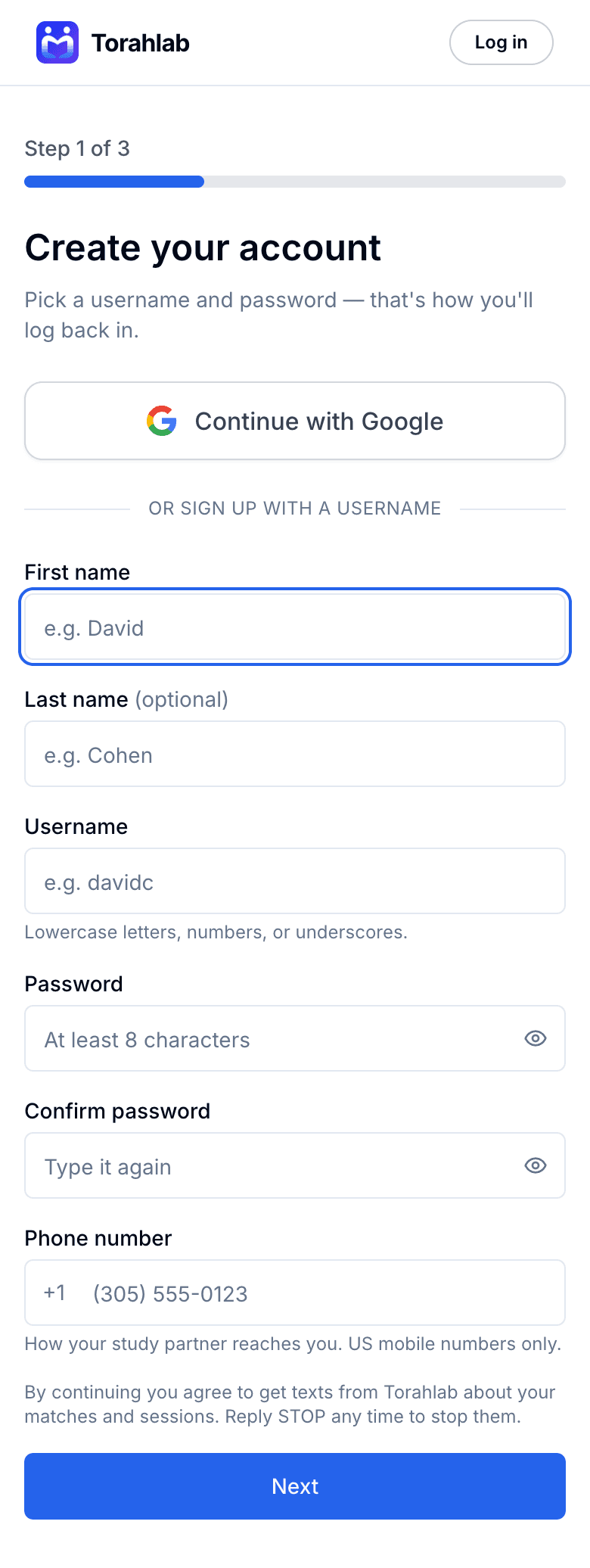
- 2
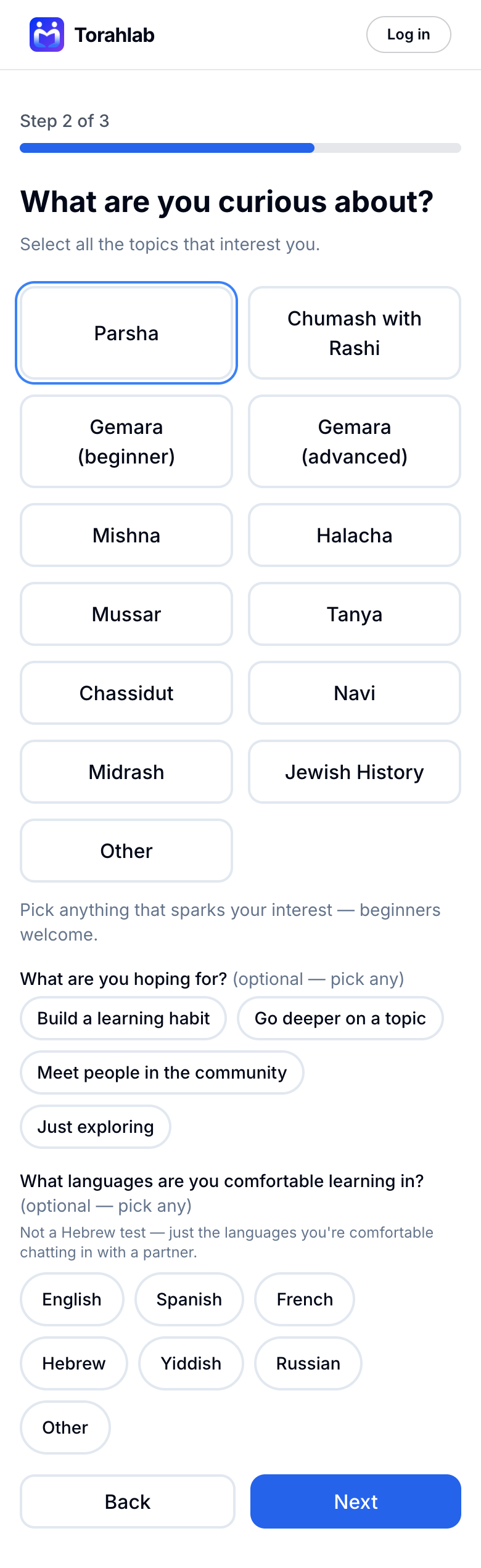
Say what you're curious about
Tap any topics that interest you — Parsha, Gemara, Mishna, Halacha and more. Pick as many as you like. Beginner and advanced Gemara are separate options, so there's no wrong answer. The rest of this screen is optional: what you're hoping for, and which languages you're comfortable learning in.
Tap to see the whole screen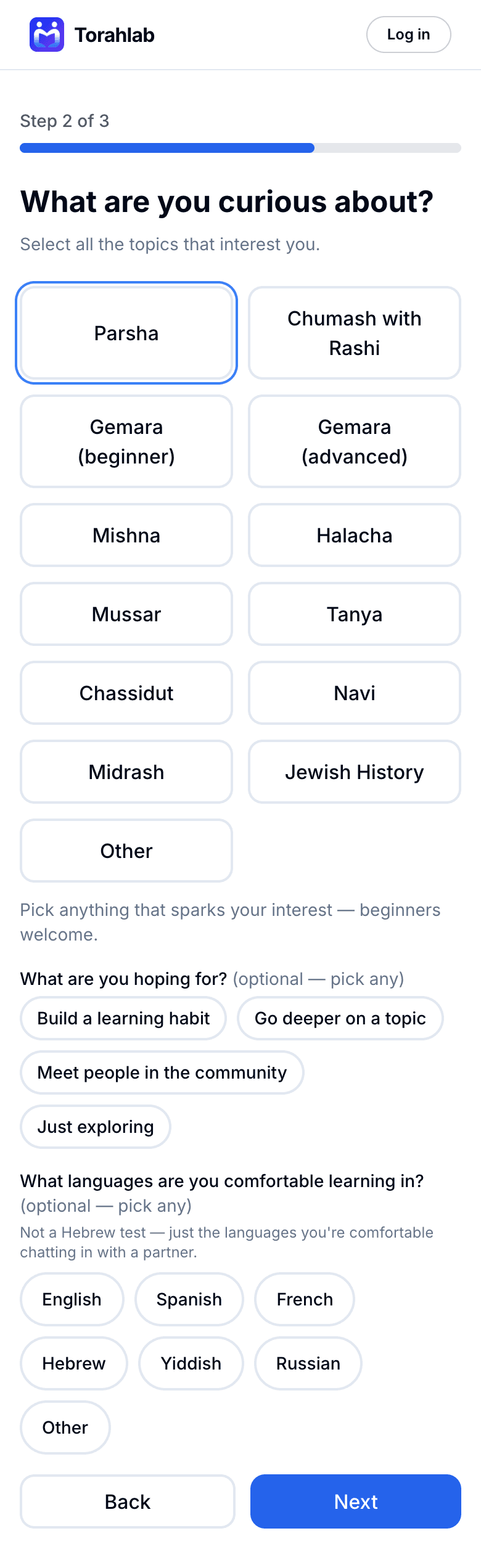
- 3
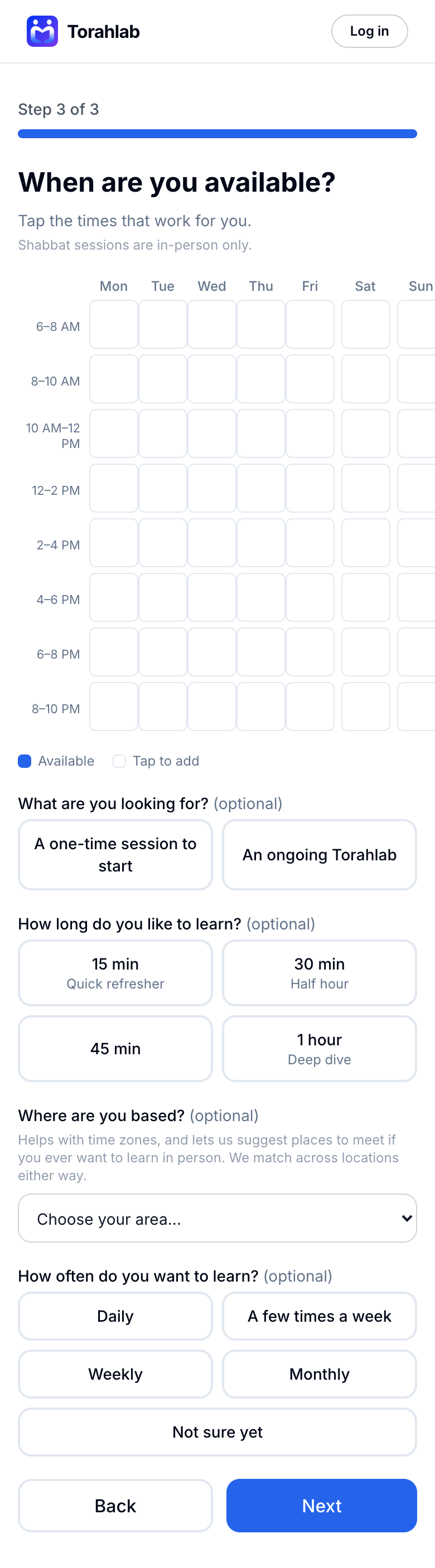
Mark when you're free
Tap the two-hour blocks that usually work for you. This is the single most useful thing you can fill in — it's what lets us show you and a partner the times you already share. Everything below the grid is optional: how long you like to learn, roughly where you are, and how often.
Tap to see the whole screen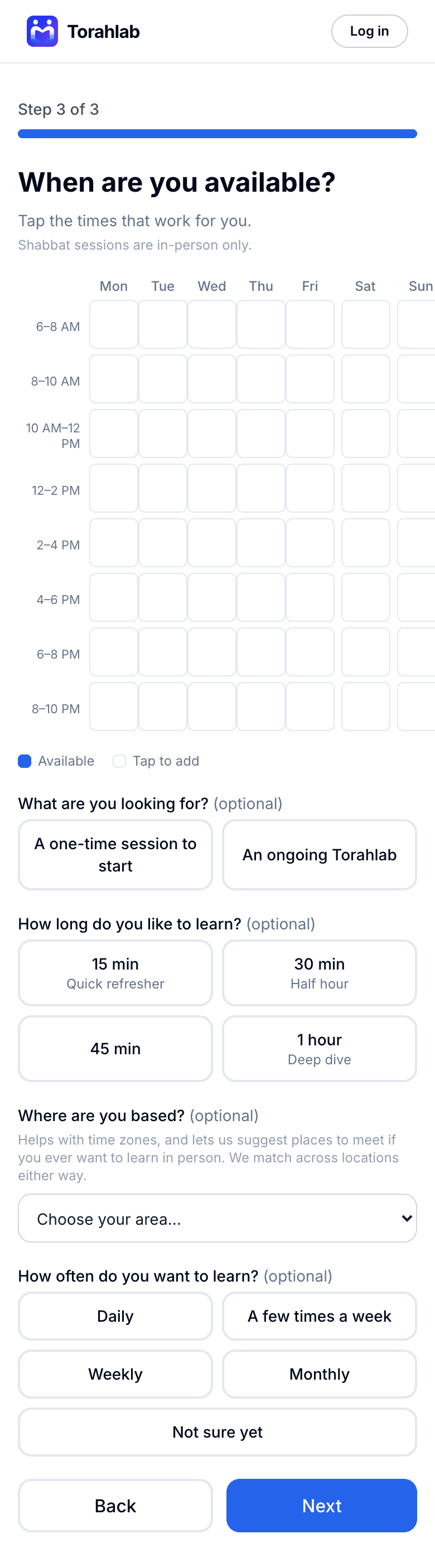
Then
Finding a partner
A Torahlab is one person you learn with. Here's how you meet yours.
- 4
Your home screen tells you what's next
After signup you land here. The Getting started card tracks the five things that lead to your first session and always points at the one thing to do next — so you never have to guess. Below it: your matches, anything waiting on you, and your notifications.
Tap to see the whole screen
- 5
Find a match
Tap Find new matches to see people you could learn with. Anyone can be matched with anyone — your level, language and role never rule you out; they only nudge the order. The tabs track where each person stands: New, Waiting on them, Matched, Active, Past.
Tap to see the whole screen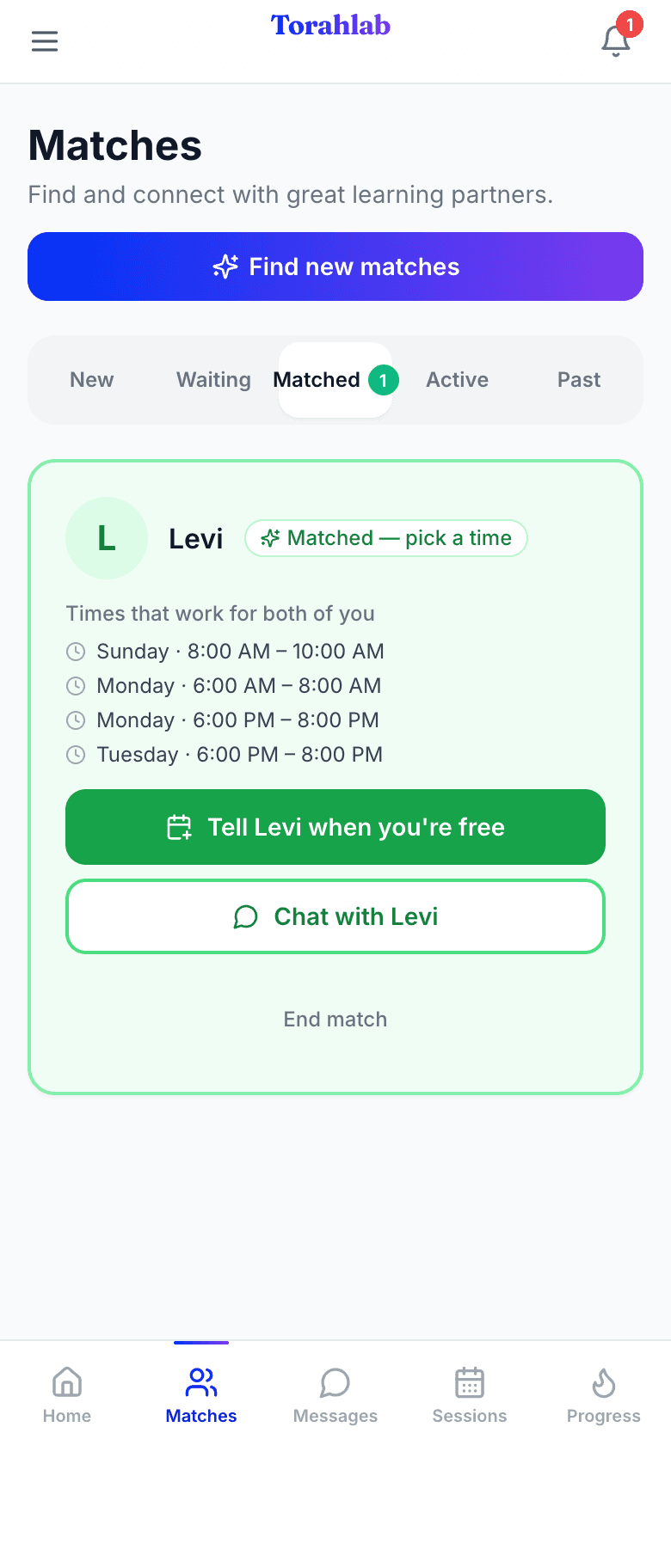
- 6
Pick a time — this is the part people miss
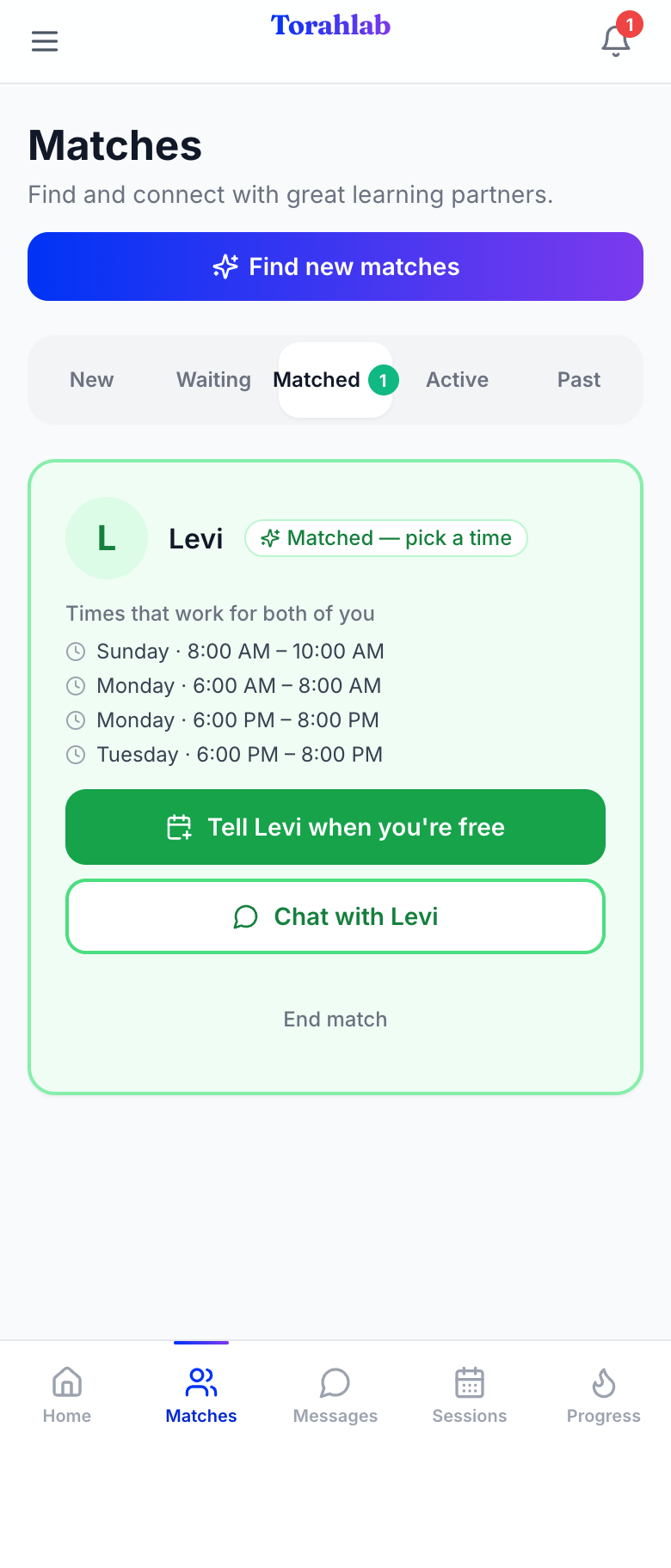
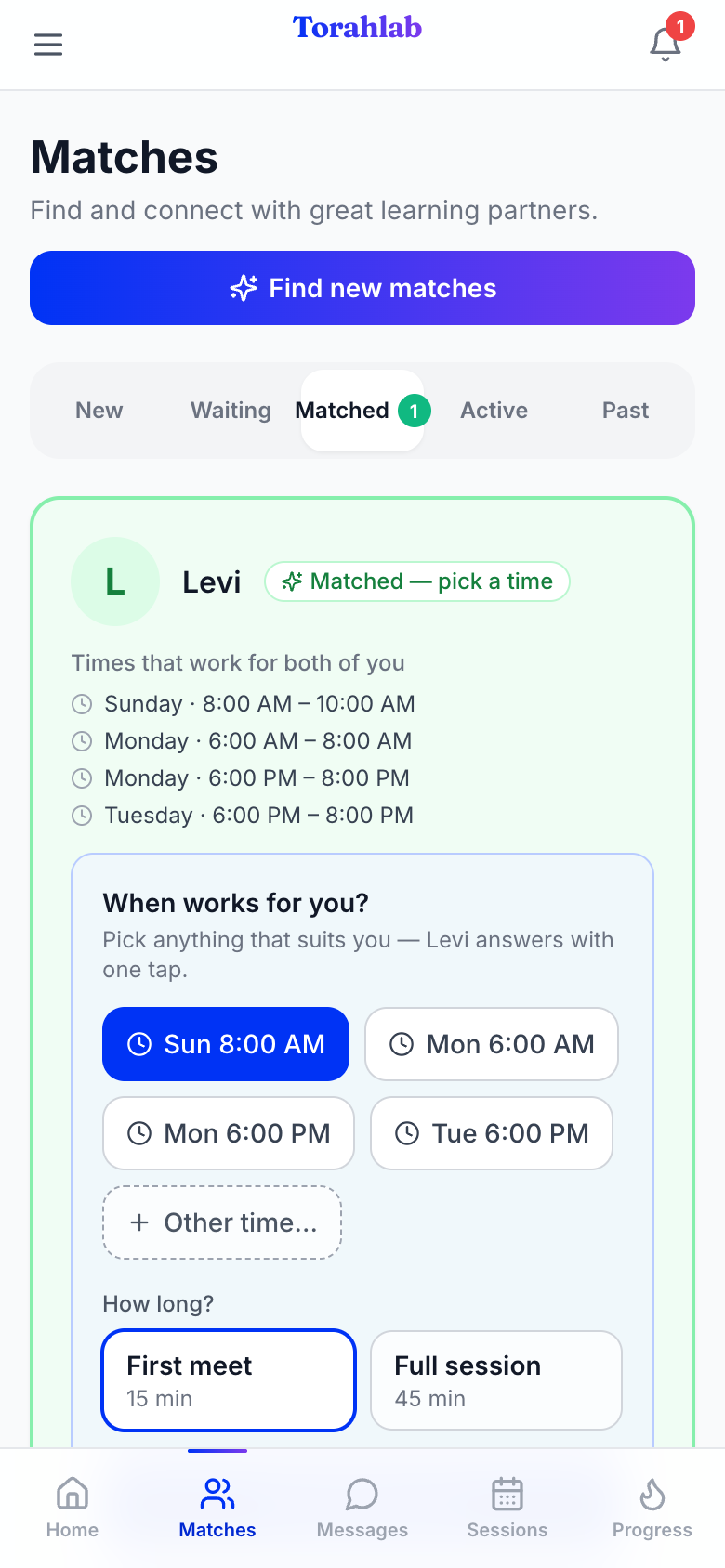
Once you're both matched, the match card itself becomes the scheduler. It lists the times you and your partner are both free — tap one, or tap Other time to name your own. Then choose First meet (15 minutes) or a full session. Your partner answers with a single tap, and gets a text about it.
Tap to see the whole screen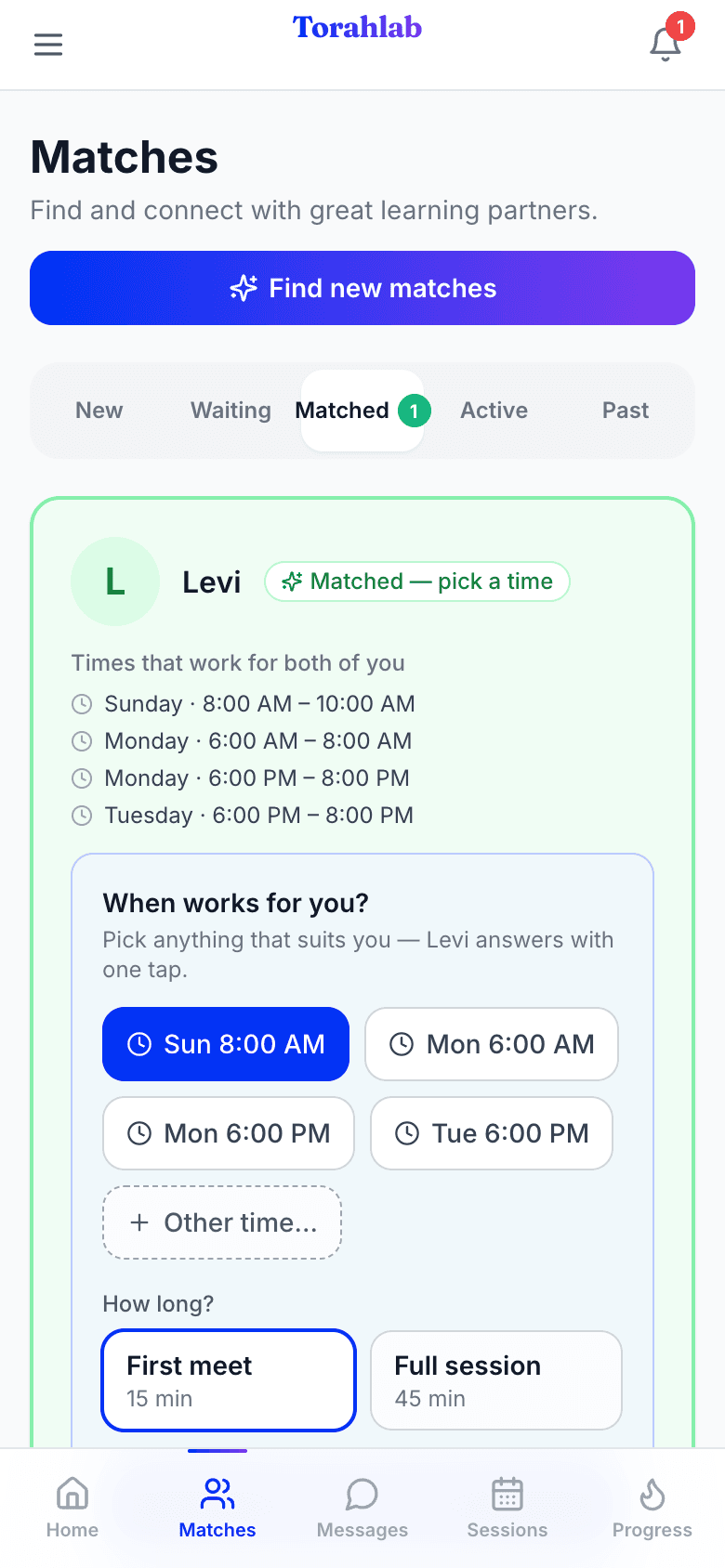

Next
Keeping track
Everything you've agreed to, in one place.
- 7
Your sessions
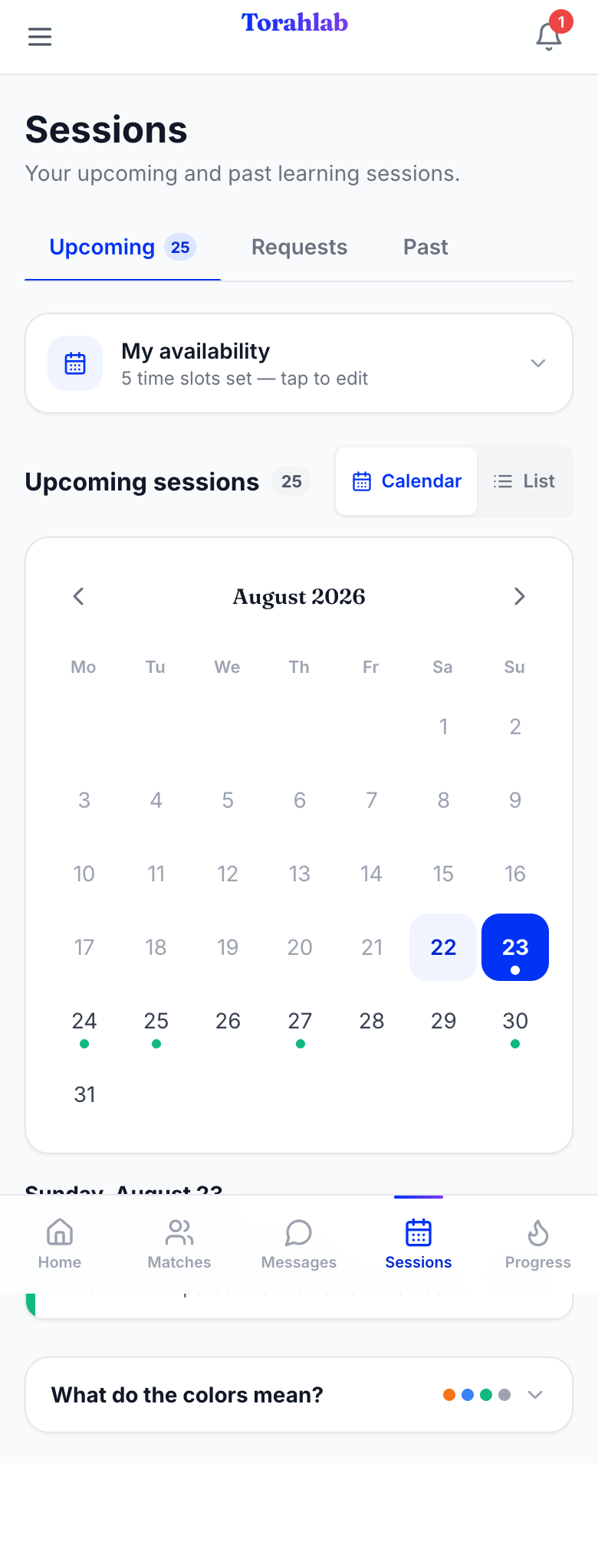
Upcoming shows what's booked, as a calendar or a list — including the groups you've joined, so a weekly chaburah appears here week after week. Requests holds invitations waiting on an answer. My availability sits at the top: tap it to change your free times whenever your week changes.
Tap to see the whole screen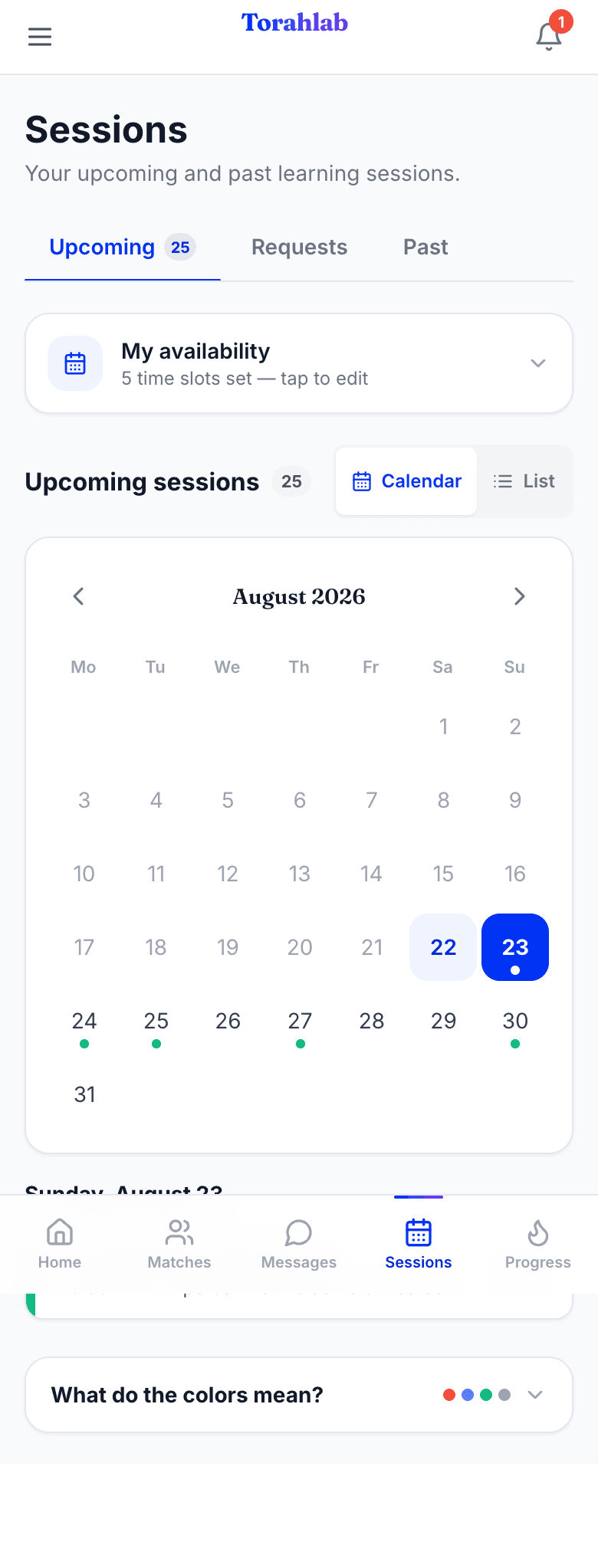
- 11
Watch it add up
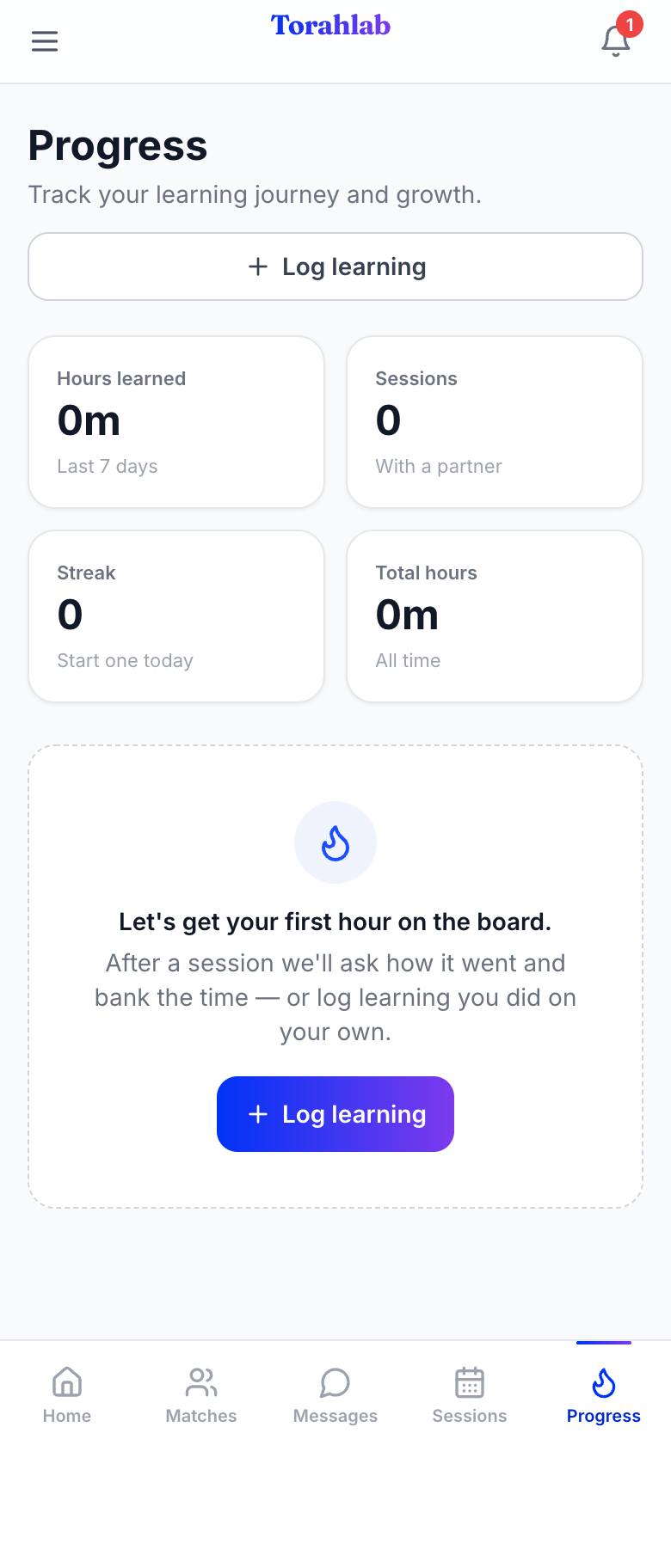
Progress keeps your streak and a log of what you've learned. Nobody is grading you — it's there because seeing a few weeks stack up is what makes the next session easy to say yes to.
Tap to see the whole screen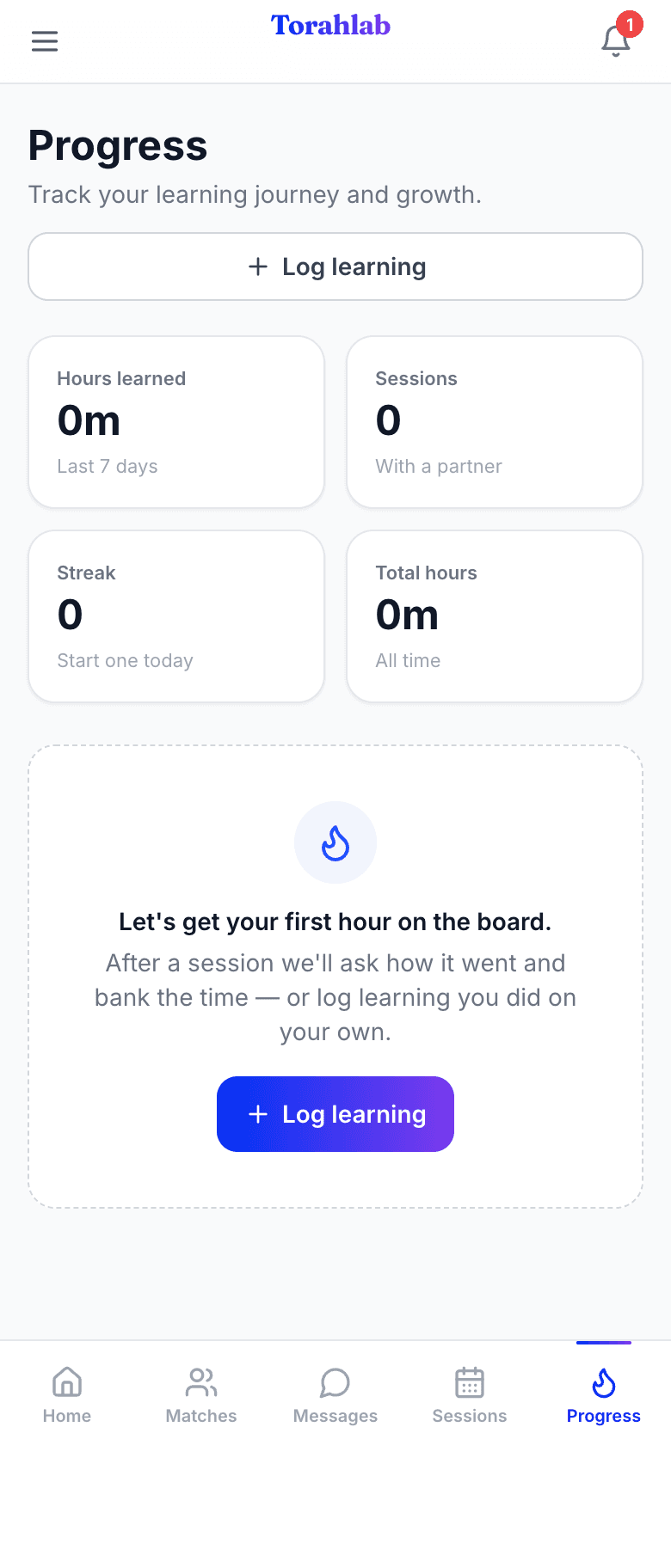
Also
Groups — the fastest way in
Waiting on a match? Don't. A group needs no match and usually no approval — you can join one today.
- 8
Browse what's running
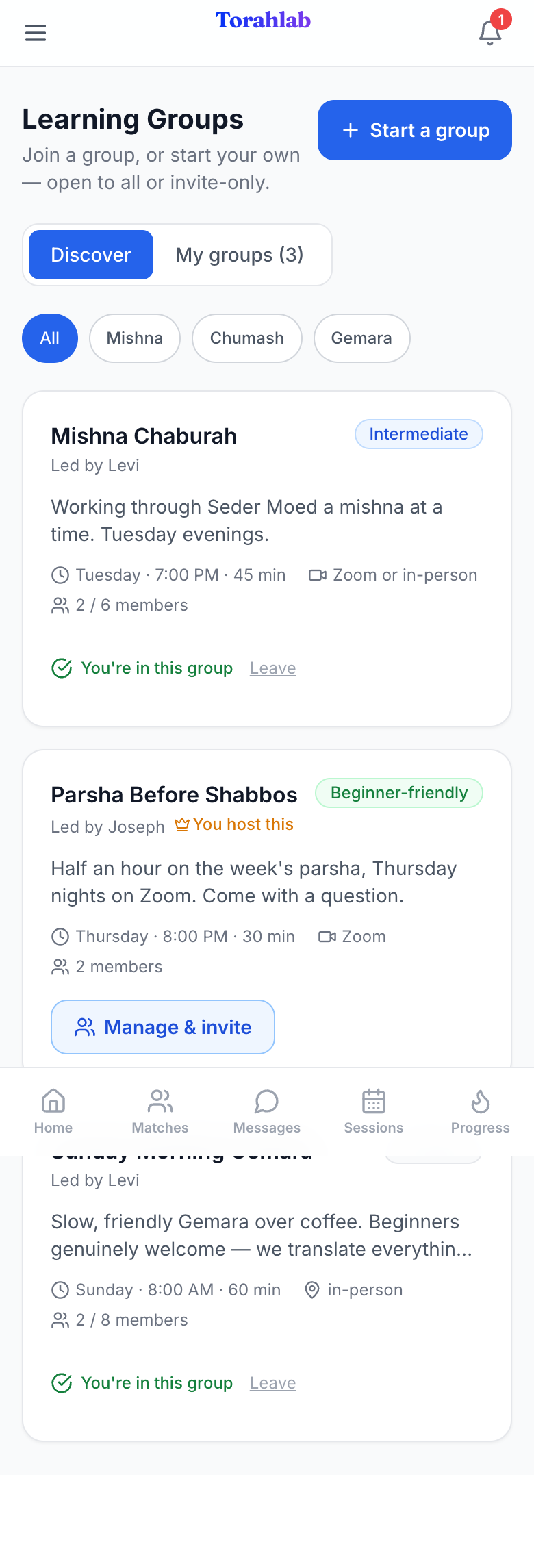
Discover lists every open group: the topic, the day and time, how long it runs, whether it's on Zoom or in person, and how many people are in it. Filter by topic with the chips along the top. Most groups you can simply join.
Tap to see the whole screen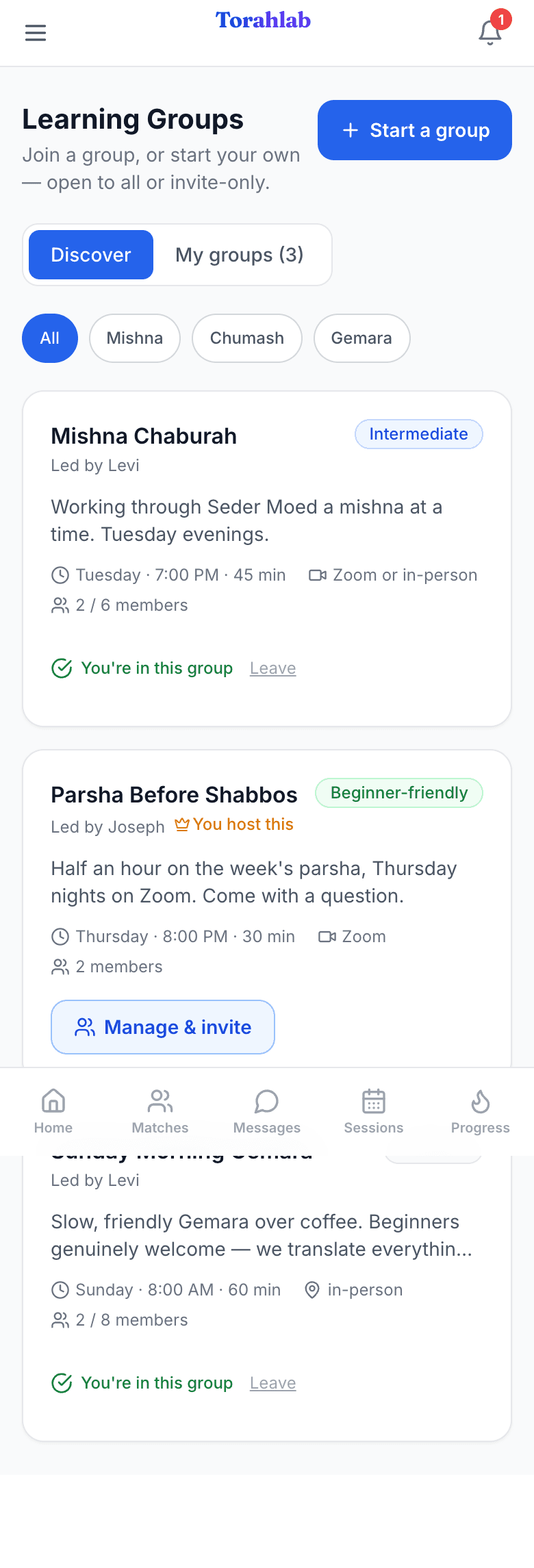
- 9
Open a group to see the details
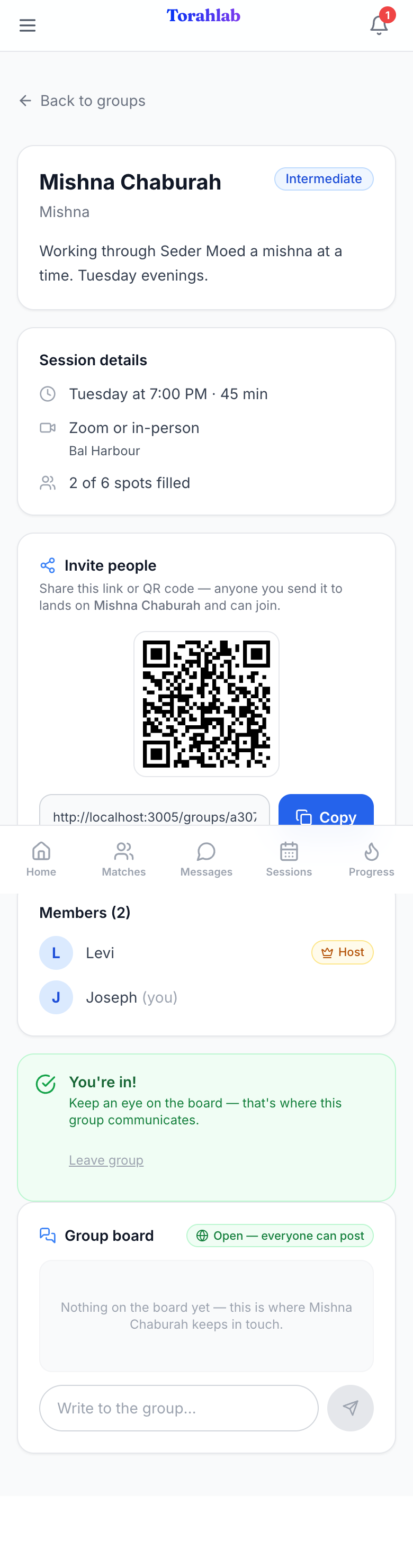
The group page has the full description, who's hosting, who else is in it, and the group's message board. Joining puts its meetings on your Sessions calendar automatically.
Tap to see the whole screen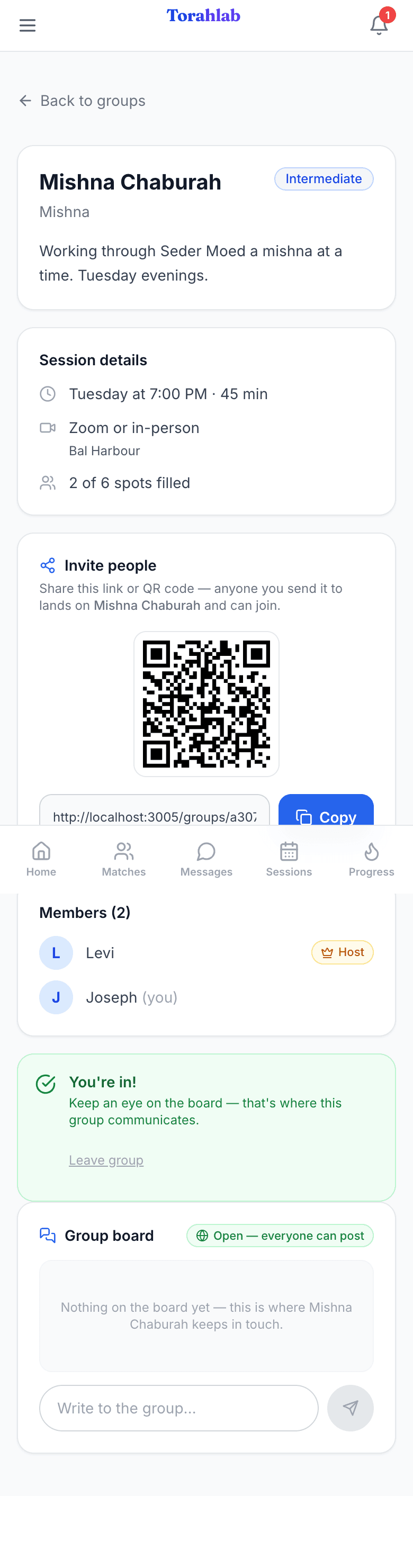
- 10
Or start your own
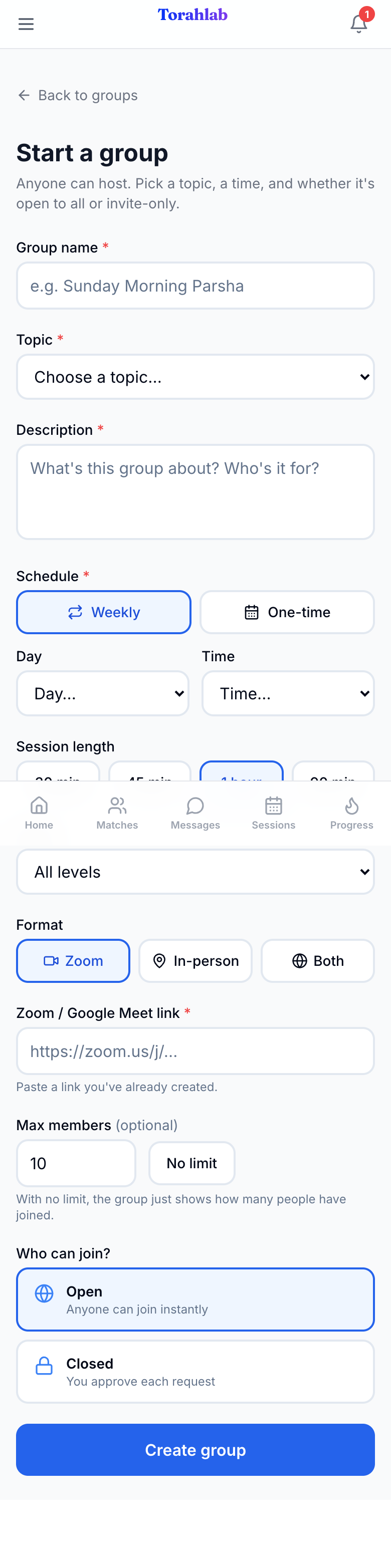
Start a group takes a name, a topic, a short description, and when it meets — weekly on a day, or a one-time event. Choose Zoom or in person, cap the size or leave it open, and decide whether people join instantly or need your approval. You don't need to be a rabbi to host one.
Tap to see the whole screen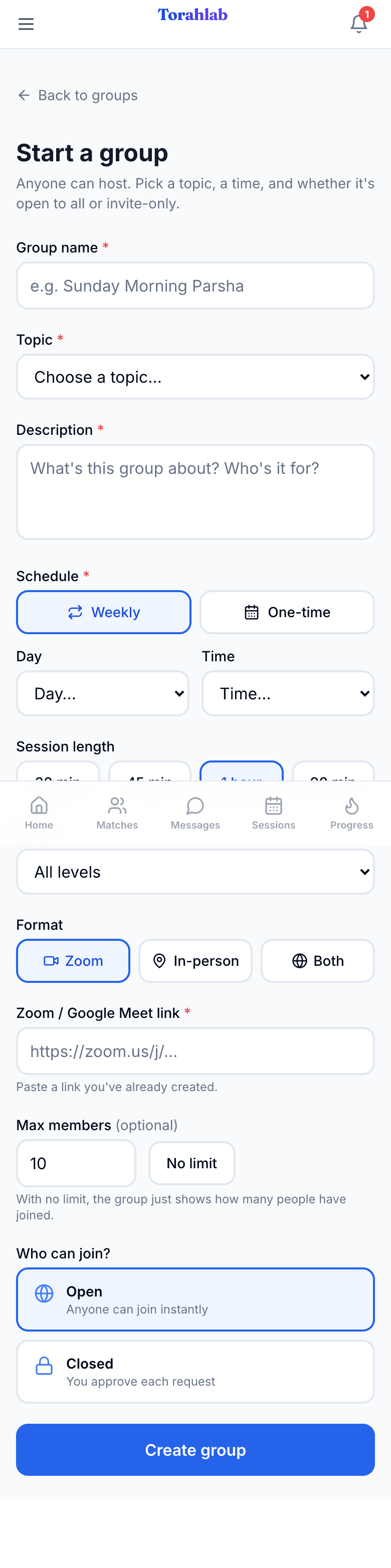
Later
Coming back
- 12
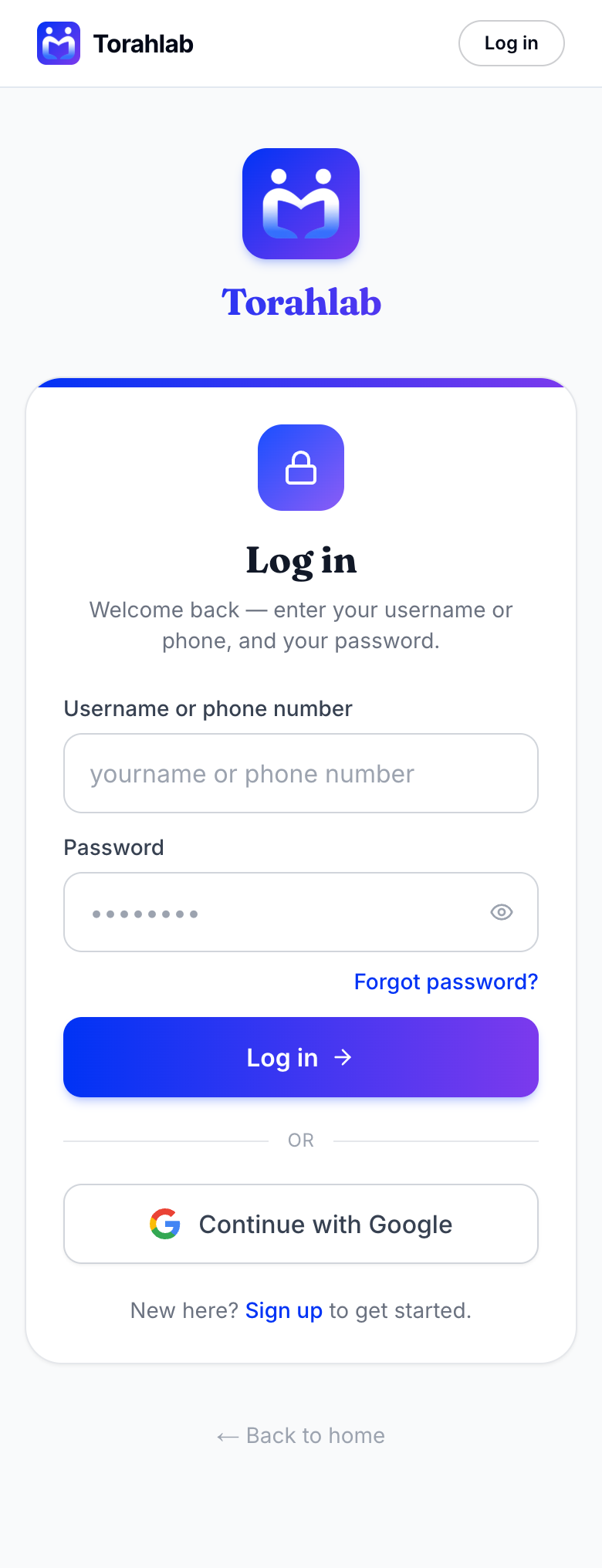
Logging back in
Use the username and password you picked at signup, or the Google account you used. If you've forgotten your password, Forgot password on the login screen will get you back in.
Tap to see the whole screen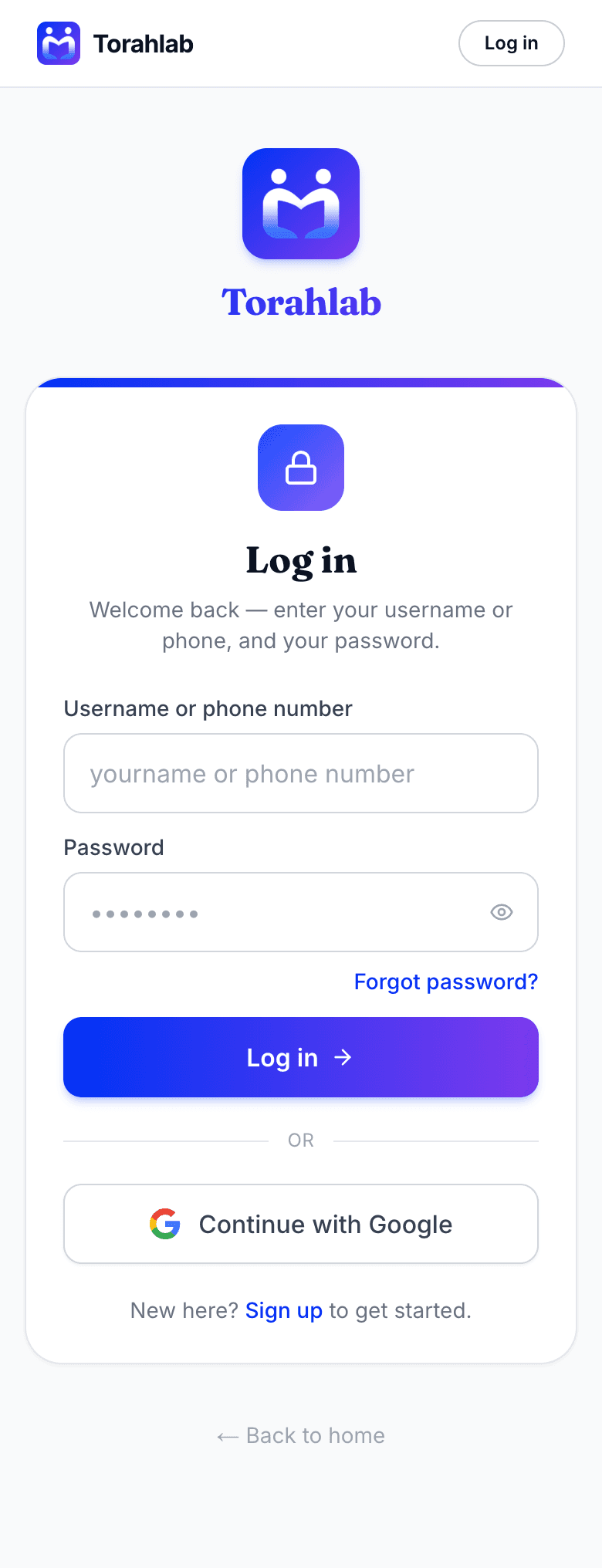
Honest answers
If you get stuck
- I signed up but there's nothing to schedule.
- A one-to-one session needs a match, and a match needs the other person to say yes — so the first day can look empty. Groups don't work that way: they need no match and usually no approval. Joining one is the fastest way to get to real learning.
- I picked a time. Now what?
- Your partner gets a text and answers with one tap. Until they do, the session sits under Requests on your Sessions screen. We'll tell you the moment they answer — there's nothing you need to keep checking.
- What time are these times?
- Times are shown exactly as the host or your partner entered them — Miami time for the groups running here. If you're learning from another city, agree the time with your partner in the chat before you confirm.
- My week changed.
- Open Sessions and tap My availability to change your free times whenever you like. It updates the times you and your partners are shown as sharing.
- Something's broken, or I have an idea.
- There's a Report a problem option in the menu. It reaches the people running Torahlab directly, and ideas are as welcome as bugs — this page exists because someone sent one.
Ready when you are
The whole thing takes about a minute, and the worst that happens is you meet someone new to learn with.